

1. Close Outlook
Before you start, make sure Outlook is not running.
2. Show Hidden Files
- Open File Explorer.

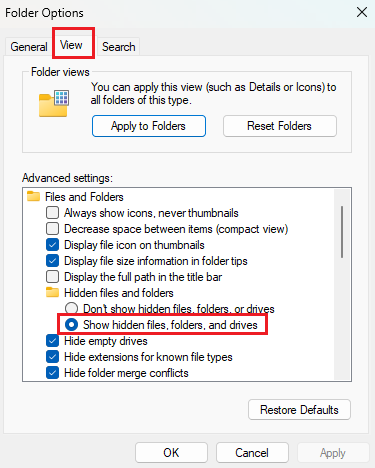
- Click on View > Options > Change folder and search options.
- Or click on the three dots
 > Options
- Or click on the three dots
- Go to the View tab.
- Under Advanced settings, check Show hidden files, folders, and drives.
- Click OK.
3. Locate the Signature File
- Navigate to
C:\Users\username\AppData\Roaming\Microsoft\Signatures. Ensure that you replace “username” in the file path with your actual Windows username. - Find the file named after your signature with a
.htmextension or HTML type.

4. Update the Signature
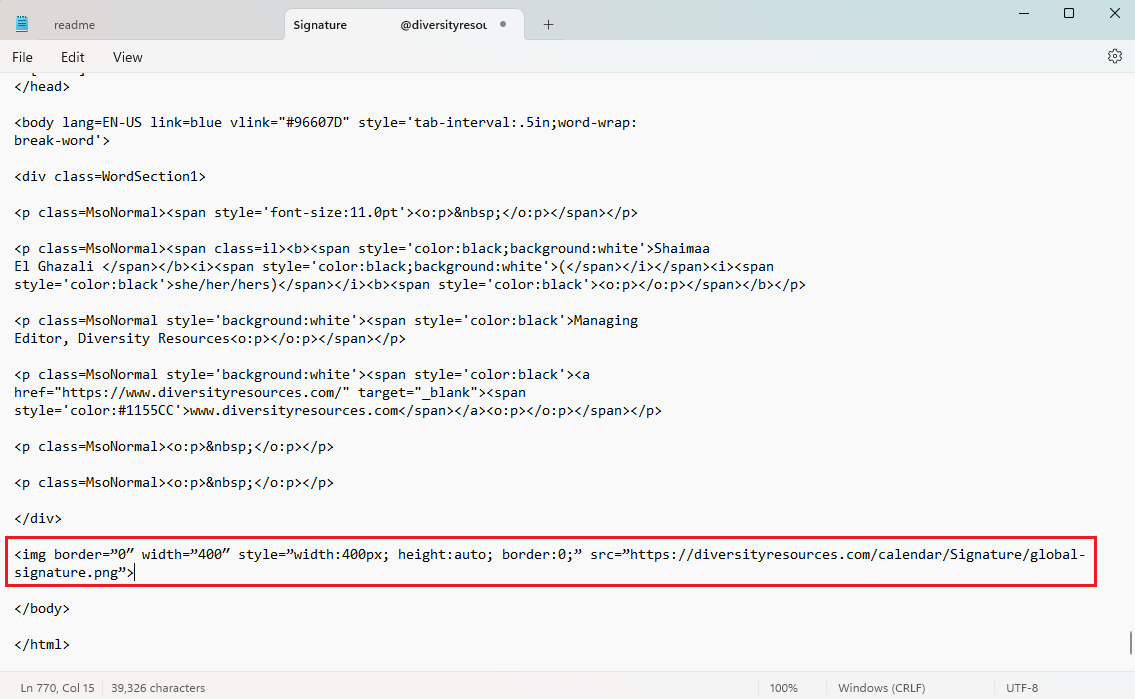
- Right-click the file and select Edit with Notepad.
- Scroll to the bottom and locate the
</div>tag. - Directly above
</div>, paste one of the following lines:- For Global banner: <img border=”0″ width=”400″ style=”width:400px; height:auto; border:0;” src=”https://diversityresources.com/calendar/Signature/global-signature.png”>
- For USA banner: <img border=”0″ width=”400″ style=”width:400px; height:auto; border:0;” src=”https://diversityresources.com/calendar/Signature/usa-signature.png”>
- For Canada banner: <img border=”0″ width=”400″ style=”width:400px; height:auto; border:0;” src=”https://diversityresources.com/calendar/Signature/canada-signature.png”>
- File > Save the changes and close Notepad.
5. Restart Outlook
- Open Outlook to see your updated signature.