

Add Diversity Calendar Banner Image to Outlook Signature
First, in your Diversity Calendar, click the email signature image to download it.
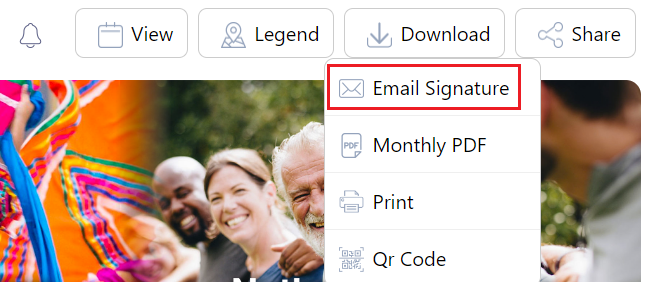
In Windows Outlook:
1. Open a new email message and click on the Message tab, then select Signature > Signatures. If you’re using New Outlook, it will be the View tab > View Settings > Accounts > Signatures.

2. In the Select signature to edit box, choose the signature you want to add the banner image to. If you don’t already have a signature, choose New, and type a name for the signature.
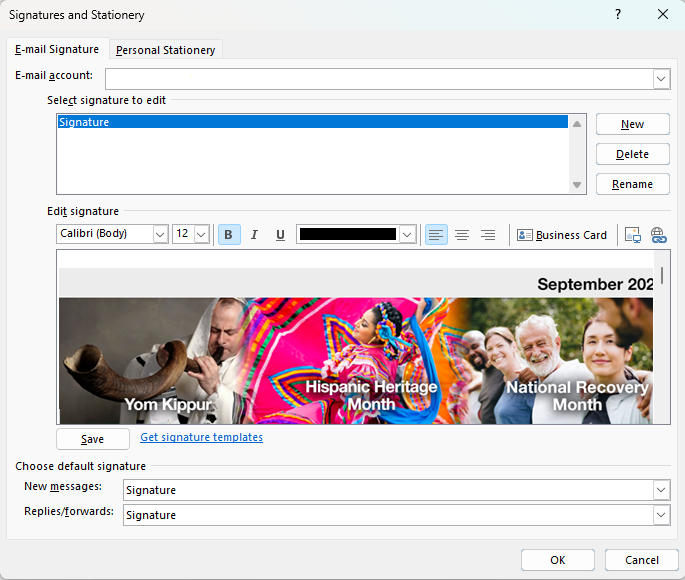
3. Click the Image icon  , locate your image file, then select Insert, and click ok to save.
Outlook for Mac:
Please follow these instructions.